
Inspired by freeCodeCamp's "Git Internals" guide and Octobot's "How Git Internally Works". The writing is my own; images are taken from Octobot's article with credit.
What we'll learn in this tutorial

git add, git commit, git push — we all run these day and night. But have you ever wondered what's actually happening inside the .git folder? When you run git commit, what gets saved and where? When you switch branches, which files get updated?
In this lesson we'll move in two steps:
- Theory — Git's three core objects (blob, tree, commit), what a branch is, and the three stages a change passes through.
- Hardcore manual rebuild — we'll build a .git folder by hand using only plumbing commands: create objects, make branches, all of it. No
git init,git add, orgit commit— everything manual.
By the time you finish this, Git won't feel like magic anymore. It's just a game of text files and hashes.
Part 1: Theory
Git's three objects — blob, tree, commit

At its core, Git is really a key-value store — you give it content, you get back a SHA-1 hash, and later you fetch the content back using that hash. That's it.
This store holds just three kinds of object:
blob — the content of a file
A blob is just the raw bytes of some file. No name, no metadata — only content.
If two different files have exactly the same content, Git doesn't store it twice — the same blob is referenced in both places.
tree — a snapshot of a folder
A tree is a directory listing. Each entry holds four things:
- mode — permission (
100644means a regular file,100755executable,040000a subdirectory) - type —
blob(file) ortree(subdirectory) - hash — the SHA-1 of whatever it points to
- name — the name of the file or folder
A tree can point to another tree — that's how a nested folder structure is built.

commit — snapshot + history
A commit object holds:
- which root tree it points to (a snapshot of the whole repo)
- who the author is, and when
- who the committer is, and when (these can differ during a rebase)
- the message
- the hash of one or more parent commits (the first commit has no parent; a merge commit has two)
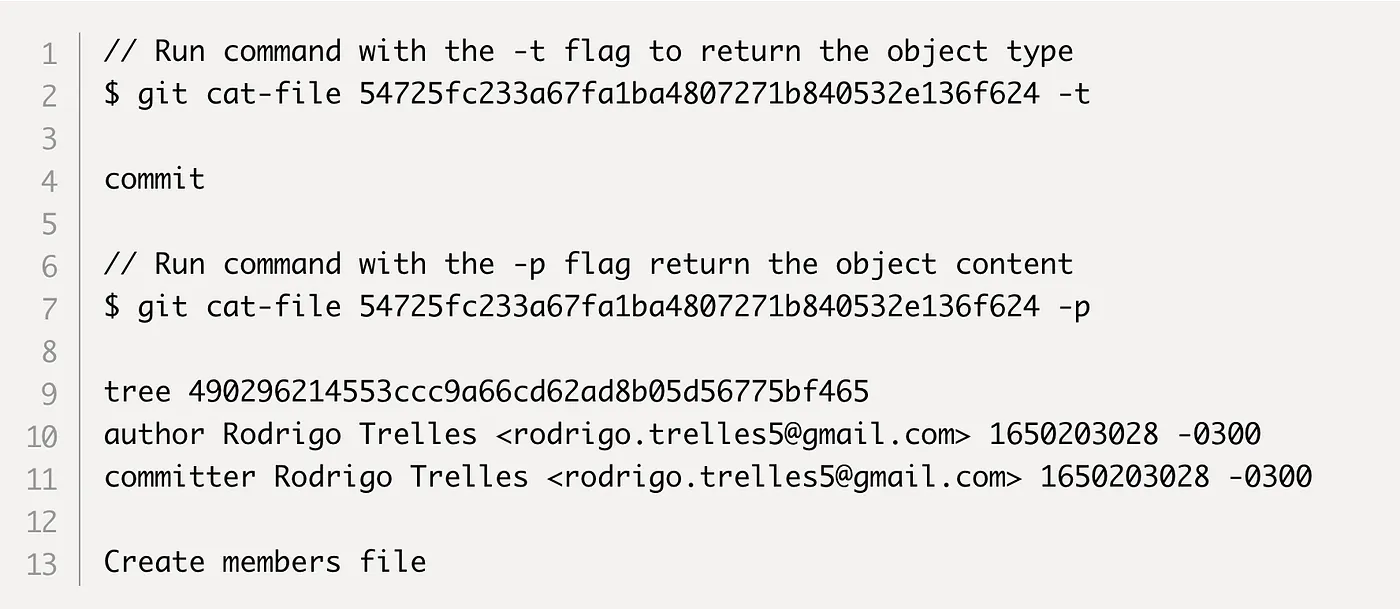
It's the parent pointer that makes commits form a linked list — and that's the history.

How the three relate
| Object | What it holds | What it points to |
|---|---|---|
| commit | metadata + message | one tree + parent commit(s) |
| tree | directory listing | many blobs/trees |
| blob | file content | nothing |
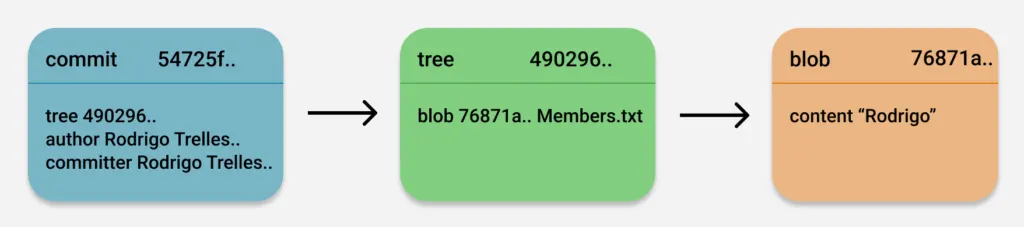
Every object is addressed by its SHA-1 hash. They're all immutable — once created, they never change. Change anything and a new object is created; the old one stays around (as long as something still references it).
Branch — a human-readable name on top of a commit
Remembering a 40-character SHA-1 hash is impossible. So Git gives you a concept called a branch — a human-readable name that points to a single commit hash.
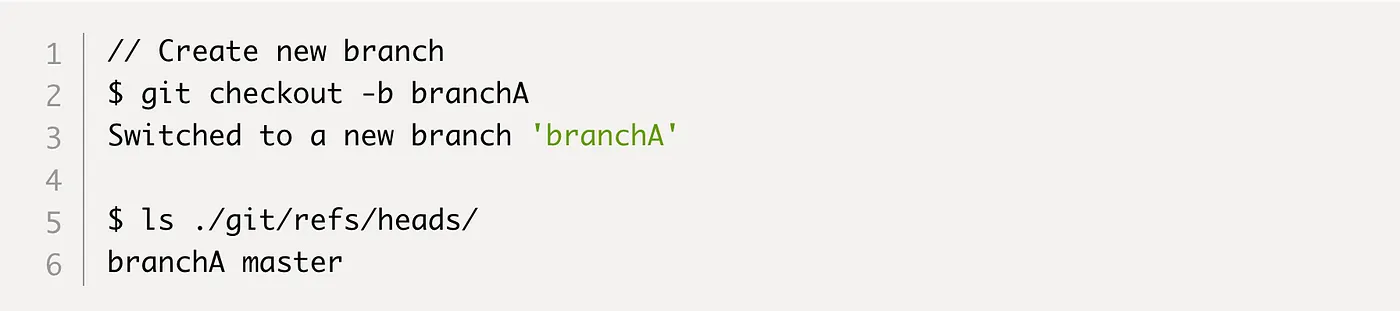
.git/refs/heads/main is just a plain text file. Inside it is a single hash. That's it. There's nothing more to the main branch than that.

When you make a new commit, Git updates this file — it drops in the new commit's hash. That's why a branch "moves forward."
HEAD — pointer to pointer
Which branch am I on right now? The .git/HEAD file tracks that. Inside it says:
ref: refs/heads/main
So HEAD doesn't point directly to a commit — it points to a branch, and the branch points to a commit. HEAD = pointer to pointer.

Running git checkout dev really just changes the line inside HEAD (ref: refs/heads/dev). The working directory adjusts, but no objects get copied.
The three stages of recording a change
Any change in Git passes through three areas:
Working Directory  →  Staging Area (Index)  →  Repository (.git/objects)
   (modify)              (git add)                   (git commit)
- Working directory — your actual files. What you're editing.
- Staging area (or index) — a "prepared" list of which changes will go into the next commit. It lives in
.git/indexin a binary format. - Repository — the permanent storage inside
.git/objects/.
A file's state is one of two kinds: tracked (Git knows it) or untracked (a new file Git doesn't know about yet).
Part 2: The conventional way
First let's see what happens the normal way.
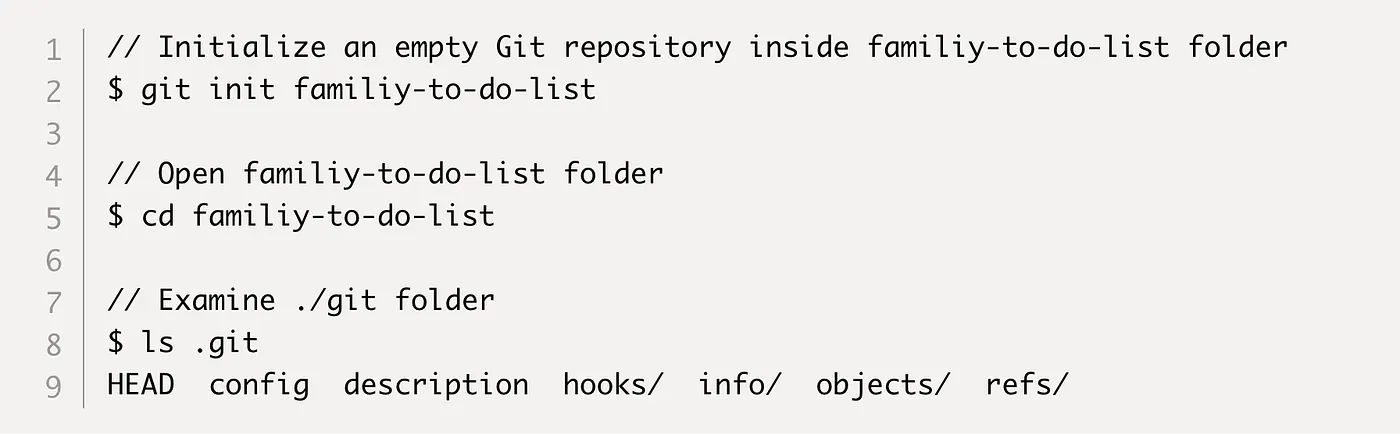
$ mkdir myrepo && cd myrepo
$ git init
$ ls -a .git
HEAD  config  description  hooks/  info/  objects/  refs/
Let's make a file and commit it:
$ echo "hello git" > hello.txt
$ git add hello.txt
$ git commit -m "first commit"
Now look inside .git/objects/:

Three objects were created — a blob (file content), a tree (folder), and a commit. Each subfolder is named after the first 2 characters of the hash, and the file after the remaining 38.
git cat-file -p <hash> lets you see the content of any object:
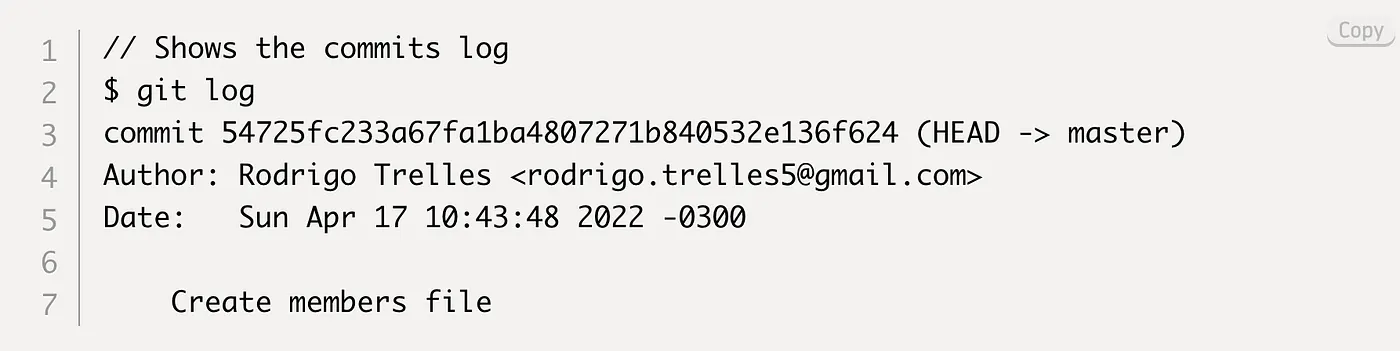

Exactly as I said in the theory — three objects, linked to one another.
Part 3: Now the hardcore part — building .git by hand
Here's where the real fun is. We won't run any git init, git add, or git commit. We'll build the repo by hand using only plumbing commands.
Plumbing vs Porcelain
Git's commands come in two layers:
- Porcelain — the user-facing, everyday commands:
git add,git commit,git log,git branch,git checkout. Nice and easy. - Plumbing — the low-level commands:
git hash-object,git cat-file,git update-index,git write-tree,git commit-tree,git update-ref. Raw, but powerful.
The porcelain commands call plumbing commands under the hood. We'll skip porcelain and work directly with plumbing.
Step 1: Build the .git folder by hand
$ mkdir hardcore-repo && cd hardcore-repo
$ mkdir -p .git/objects .git/refs/heads
$ echo "ref: refs/heads/main" > .git/HEAD
That's all. Three folders plus a HEAD file. Git will now recognize this as a valid repo:
$ git status
On branch main
No commits yet
nothing to commit
No git init needed — Git figured it out because the shape of .git/ is correct.
Step 2: Create a blob by hand
To turn a file's content into a blob, we use git hash-object:
$ echo "hello hardcore" > hello.txt
$ git hash-object -w hello.txt
a1b2c3d4e5f6...
-wmeans "don't just hash it — actually write it into.git/objects/"- the output is a SHA-1 hash
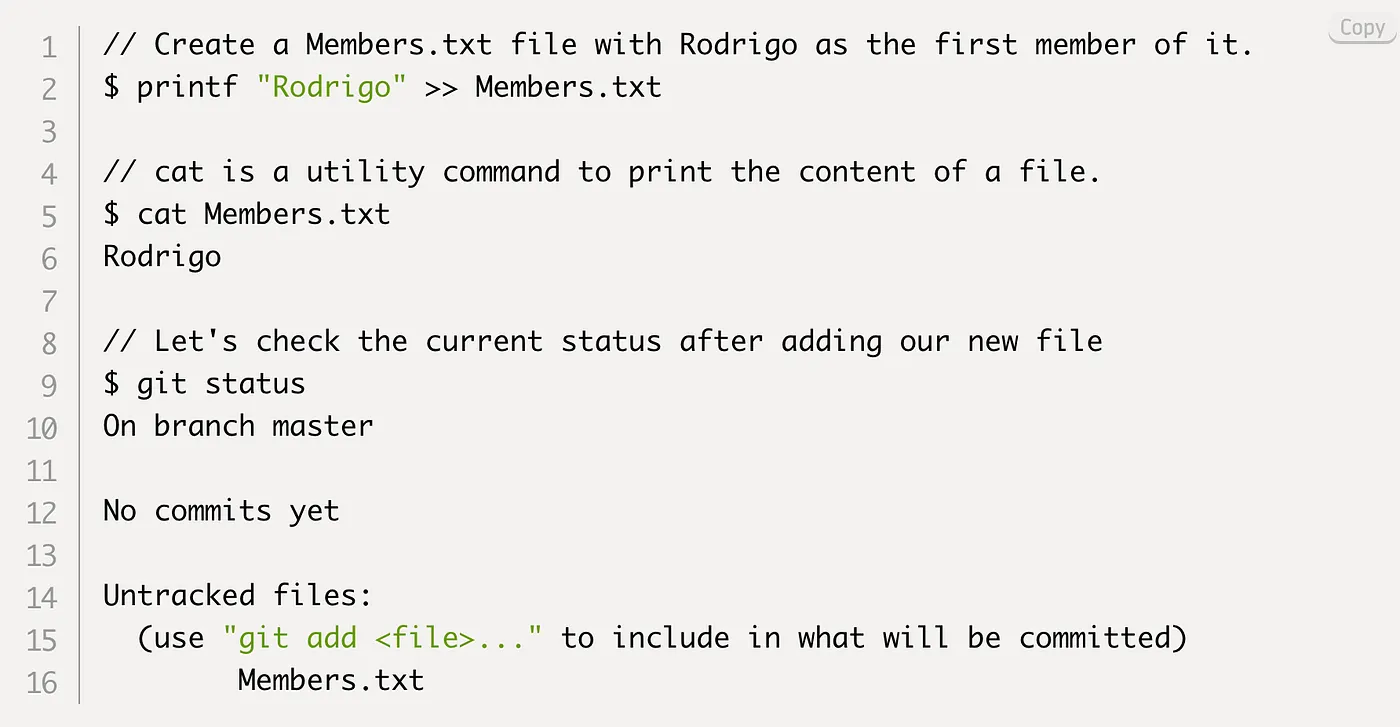
Let's verify:
$ git cat-file -t a1b2c3d4
blob
$ git cat-file -p a1b2c3d4
hello hardcore

The blob is created. But it's not in the staging area yet — we have to register it in the index.
Step 3: Add to the index
We use git update-index to add the blob as an entry in the index file:
$ git update-index --add --cacheinfo 100644 a1b2c3d4... hello.txt
--cacheinfo— we're giving mode, hash, and path manually100644— regular file permission- this is the job of porcelain
git add— but we're doing it directly with plumbing
$ git status
Changes to be committed:
  new file:   hello.txt
Step 4: Create the tree
To turn the index's state into a tree object, use git write-tree:
$ git write-tree
b2c3d4e5...
This takes everything in the index, creates a tree object, writes it into objects/, and returns the hash.
$ git cat-file -p b2c3d4e5
100644 blob a1b2c3d4...  hello.txt
Look — inside the tree is exactly that info: mode, type, blob hash, name.
Step 5: Create the commit
We wrap the tree in a commit object using git commit-tree:
$ echo "first hardcore commit" | git commit-tree b2c3d4e5
c3d4e5f6...
- the commit message comes in via stdin
- the output is the commit object's hash
$ git cat-file -p c3d4e5f6
tree b2c3d4e5...
author Nazrul <...> 1716...
committer Nazrul <...> 1716...

first hardcore commit
It's the first commit, so there's no parent line.
Step 6: Pointing the branch at it
The commit is created, but main doesn't know about it yet — because the refs/heads/main file doesn't exist. Let's create it:
$ git update-ref refs/heads/main c3d4e5f6...
Or directly:
$ echo "c3d4e5f6..." > .git/refs/heads/main
Both do the same thing — put the commit hash into the branch file.

Verify:
$ git log
commit c3d4e5f6... (HEAD -> main)
Author: Nazrul <...>

    first hardcore commit
🎉 We built a full commit without a single porcelain command.
Step 7: A second commit (with a parent)
Edit the file and go through the same process again:
$ echo "second line" >> hello.txt
$ git hash-object -w hello.txt              # new blob
d4e5f6...
$ git update-index --add --cacheinfo 100644 d4e5f6... hello.txt
$ git write-tree                            # new tree
e5f6a7...
$ echo "second commit" | git commit-tree e5f6a7 -p c3d4e5f6
f6a7b8...
$ git update-ref refs/heads/main f6a7b8...
Notice — with -p c3d4e5f6 we're giving the previous commit as the parent. That's what builds the history.


Step 8: Make a new branch by hand
To create a dev branch, you just make one file:
$ cp .git/refs/heads/main .git/refs/heads/dev
That's it. dev now points to the same commit as main.

To switch, we change HEAD:
$ echo "ref: refs/heads/dev" > .git/HEAD
$ git branch
* dev
  main
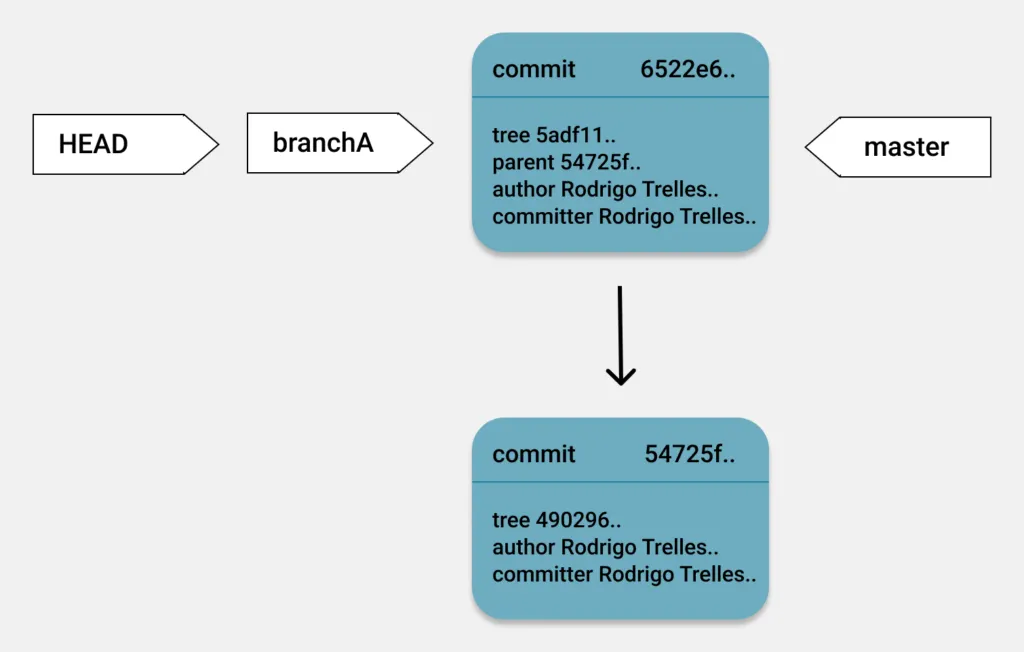
See it? Switching a branch just means changing the content of one text file. Nothing more.
Step 9: Tag — the branch's immutable cousin
The only difference between a tag and a branch is this: a tag doesn't advance.
$ mkdir -p .git/refs/tags
$ echo "f6a7b8..." > .git/refs/tags/v1.0
That's it. v1.0 will permanently point to that commit.

Summary
Here's what we learned in this tutorial:
- Git's core = a key-value store — give it content, get a SHA-1 hash.
- Three object types:
- blob = file content
- tree = directory listing (mode + type + hash + name)
- commit = tree pointer + metadata + parent
- Branch = a
.git/refs/heads/<name>text file with a commit hash inside. - HEAD = a pointer to the current branch (
ref: refs/heads/main). - Tag = an immutable branch.
- Plumbing commands let you build a whole repo by hand:
git hash-object -w→ blobgit update-index --add --cacheinfo→ staginggit write-tree→ treegit commit-tree -p→ commitgit update-ref→ branch
Once this is in your head, rebase, cherry-pick, reset, reflog — all of it will make sense. Because none of them are anything more than moving pointers around.
Git isn't really version control — version control is a thin layer sitting on top of a content-addressable object store.